
Staff Guide: Adding course announcements and how the announcement settings affect when and where course users view the content of the announcement.
Where and when do students see Announcements?
Blackboard course page
Announcements should be the course landing page for most courses and the first thing students see when they arrive on the course page.
Activity Stream
All announcements are posted immediately to the students’ Blackboard Activity Stream.
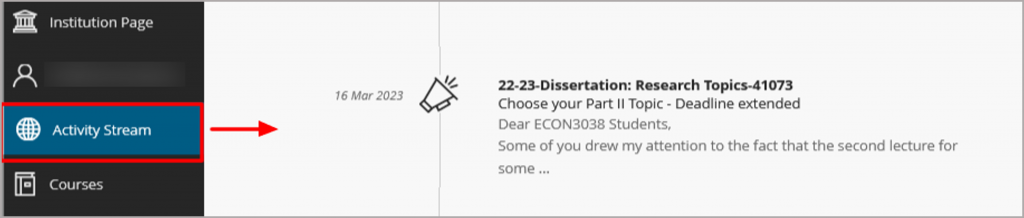
- Users can change Activity Stream notification settings but Announcements will always be displayed.
Email Announcement – send a copy immediately NOT ticked.

–This option should be used for the majority of announcements.
- The announcement will always be sent to course users by email.
- There may be a slight lag in mail delivery and some users will have their notifications set to only receive announcements once a day – delivered around 5 pm. You can encourage students to set email notifications to arrive straight away.
- The email appears to come from BlackboardRobot@soton.ac.uk. Include an email link if you want students to be able to reply.
- Users see the announcement text and pasted links, they can follow the View link in the email to be taken to the Blackboard course and see the full content of the announcement, including any images and linked course items.
Email Announcements – send a copy immediately ticked

– This option should ONLY be used for time-critical announcements such as room changes.
- The announcement will be sent to email immediately to all course users.
- The email appears to come from the account of the author – but is set to “do not reply”. Include an email link if you want students to be able to reply.
- Users see the announcement text and images but the message will not link to the Blackboard course.
- Immediate emails can be sent from courses that are not yet available/open to students.
- This option doesn’t work if you choose to post the announcement in the future. You’ll receive an error and need to clear the email announcement check box.
Summary of Announcement formatting in email
| Type of content or formatting added | Send a copy of this announcement immediately – ticked | Send a copy of this announcement immediately – ticked |
|---|---|---|
| Use case | Used for the majority of course announcements. | Only for time-critical information such as room changes. |
| All formatting in the first row of the editor, such as font formatting, numbered and bulleted lists, and headings | Yes | Yes |
| Image | Not in the message – follow the View link to the Blackboard course. | Yes |
| Link | Yes, and the link opens | Yes, and the link opens |
| File attachment | Appears but a user can’t open or download the file. Use Course Link to link to content items in the course. | Yes, and a user can open or download the file. |
| YouTube video, embedded | No | No |
| YouTube video, thumbnail | Yes | Yes |
| Course link | Not in the message – but follow the View link to the Blackboard course. | No |
How to use Announcements
Use regular course Announcements to let students know what is happening in their module, for example:
- Course Welcome.
- News items and links to sources of support and information at critical times – such as the run-up to assessment.
- Changes to your course, meeting times and places etc.
- Exam schedules and due date reminders – note that any due dates set in Blackboard assessments and activities will be posted automatically in students’ Activity Stream and the Calendar – and email depending on their email notification settings.
- A weekly course summary is helpful. You can use the Course Link option to guide students to the relevant Week’s content folder, or particular resources in the course, rather than adding too much detail to the announcement.
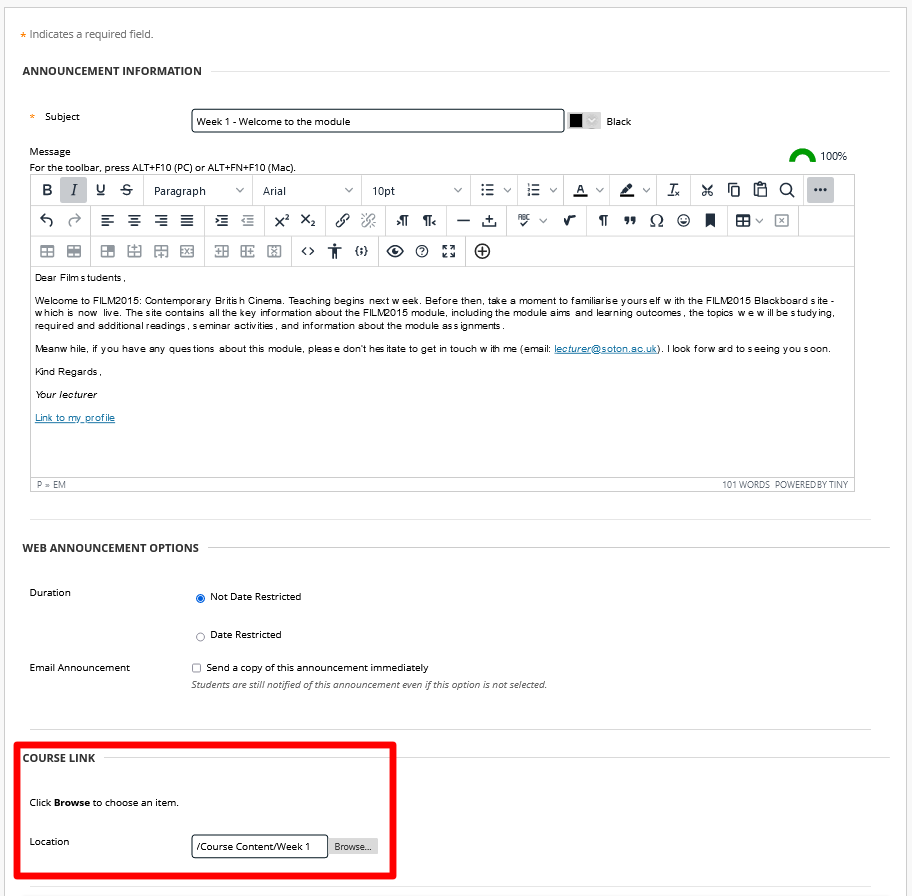
Use the Announcement Course Link section to link to course folders, content items or tools
You can also use Course Link to link to a particular file or item in your course or to guide students to folders of content related to the announcement, for example, a Weekly Content Folder or the Assessment content area.
- In the Course Link section, select Browse to link to a course area, tool, or item.
- Do not tick “Send a copy of this announcement immediately” so users can follow the View link in the email announcement to the linked items in the course.
Re-order and pin announcements
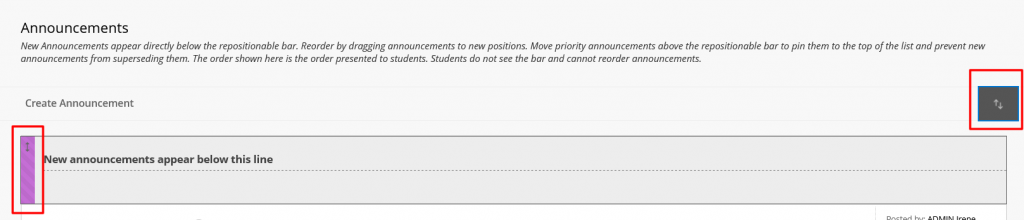
New announcements will appear at the top of the Announcement list.
- You can move an announcement up or down the list by using the drag handle that appears if you hover your mouse to the left of an announcement title. Alternatively, use the keyboard-accessible Re-order Announcements menu that is available to the right of the “Create Announcement” button
- If you want to pin an announcement so that it appears permanently at the top of the list then move it above the line “New announcements appear below this line”. You can do this by dragging the announcement or via the Re-order Announcements menu.
Other ways to email students
emails sent to students via a Blackboard course will be delivered immediately to all recipients. The email appears to come from the account of the author – but is set to “do not reply”.
Course Tools – Send Email
You can send an email to selected students, staff users, or groups (if you have visible User Groups set up).
- Follow the Tools link on the main course menu.
- select Send Email.

- Select the option for the users you want to send the message to for example; all students or selected students.
Grade Centre column – Send reminder
You can send a reminder email to anyone who does not have a mark or submission for a particular assessment – even if anonymous marking is enabled. These emails should be delivered immediately to all recipients. The email appears to come from the account of the author – but is set to “do not reply”.
The email text will read:
You currently don’t have a mark or submission for the following coursework: Title: Assessment Title Course: Course name ID: Course ID date: 24-Feb-2023 Please log in to review the instructions for this coursework and check the calendar for all due dates.
- Follow the link to Full Grade Centre from the Course Management menu.
- Locate the column for the assessment.
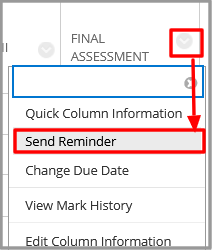
- Select the column Options drop-down menu – grey arrow to the right of the assessment column title.
- Select Send Reminder.
How to include a link to an email address if you want students to be able to reply to a Blackboard email
All emails sent from Blackboard come from a “do not reply” account. You can include a link to an email address in your message if you want students to be able to reply – this will take them directly to Outlook.
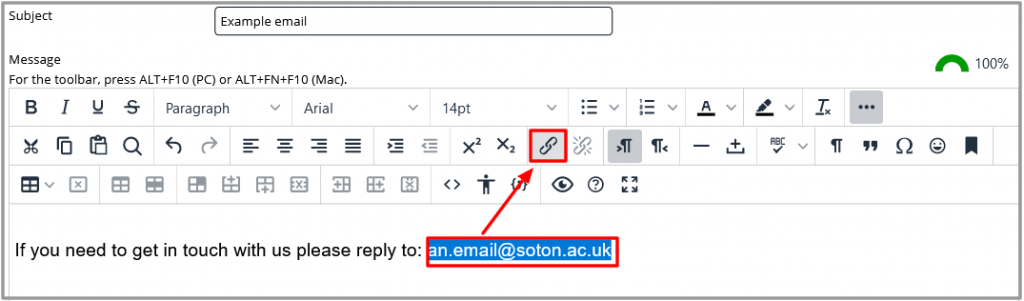
- Type the email address in the email or announcement and select the text.
- Select Insert Link from the toolbar:
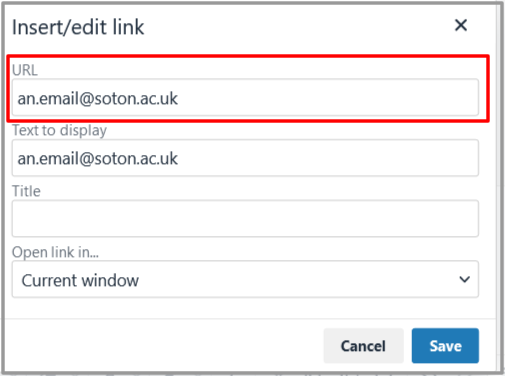
- Paste the email address into the URL field
- Select Save.
- When you send the email, select YES when you are asked if you want to include the email link in the message.
Create a shareable link to your course or a content item
This guide will show you how to:
- Correctly copy a link to the course or content.
- Convert the link to create a “deep link” into your Blackboard course. This will work regardless of whether the person who follows the link is logged into Blackboard or not.
- Share the link following good accessibility practice.