
Course ID and name
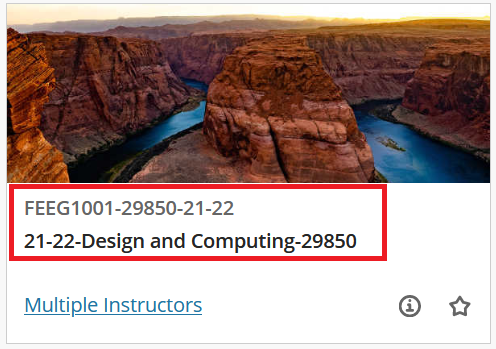
You can find the course ID and name on Blackboard. The code at the top is the course ID and the longer text below is the course name. In this example:
- FEEG1001-29850-21-22 is the Course ID
- 21-22-Design and Computing-29850 is the Course name
Finding your courses
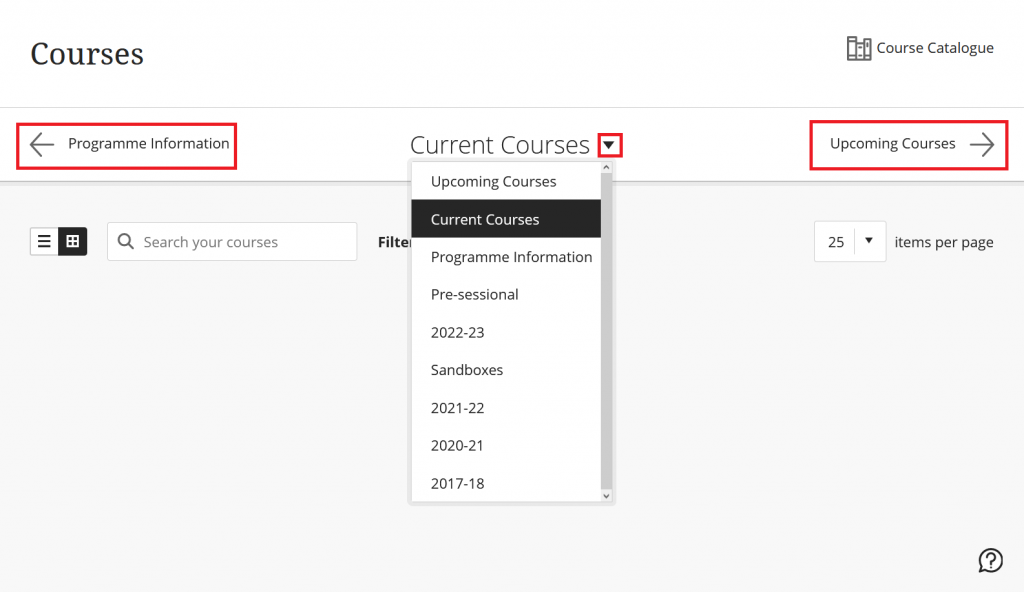
- Go to Courses
- You will see a list of your Current Courses, organised by term.
- Use the arrows along the top of the page/the drop down menu to filter the courses by term view.
Please also see Blackboard help for Courses.
Searching for a course
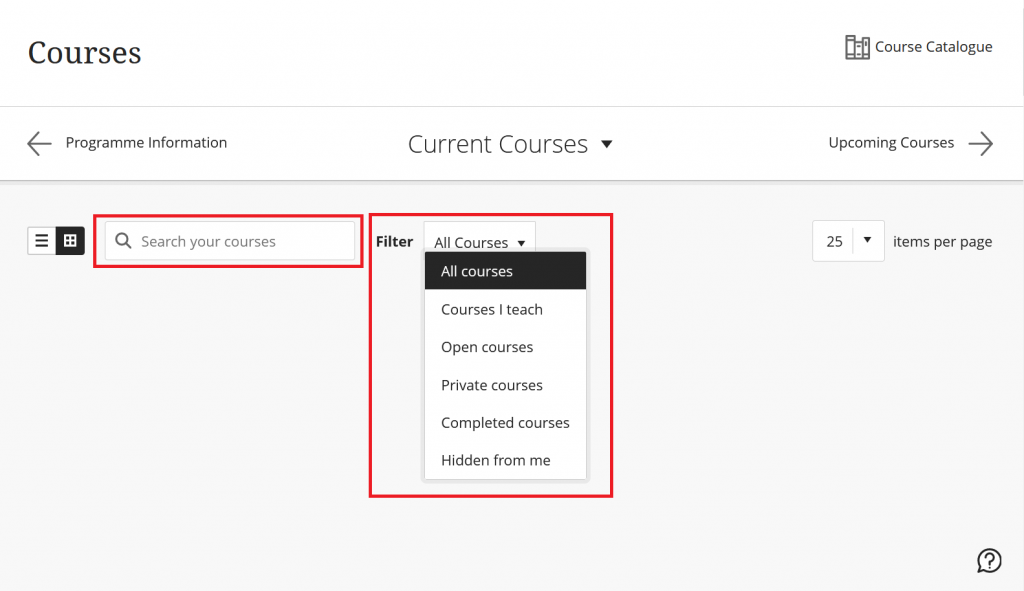
Use the search bar to search for a course. You can search using the Course Name or Course ID. You can filter the search
- Courses I teach will show you courses where you are listed as an Instructor
- Courses I am taking will show you courses where you are listed as a Student
- Courses I support will show you courses where you are listed as a…
- Open Courses will show courses which are currently Open/Available
- Private Courses will show courses which are currently Private/Unavailable
- Completed Courses will not show any courses. This feature is not in use at the University of Southampton.
Remember to select the X to clear the search when you want to return to your full list of courses.
Course Catalogue
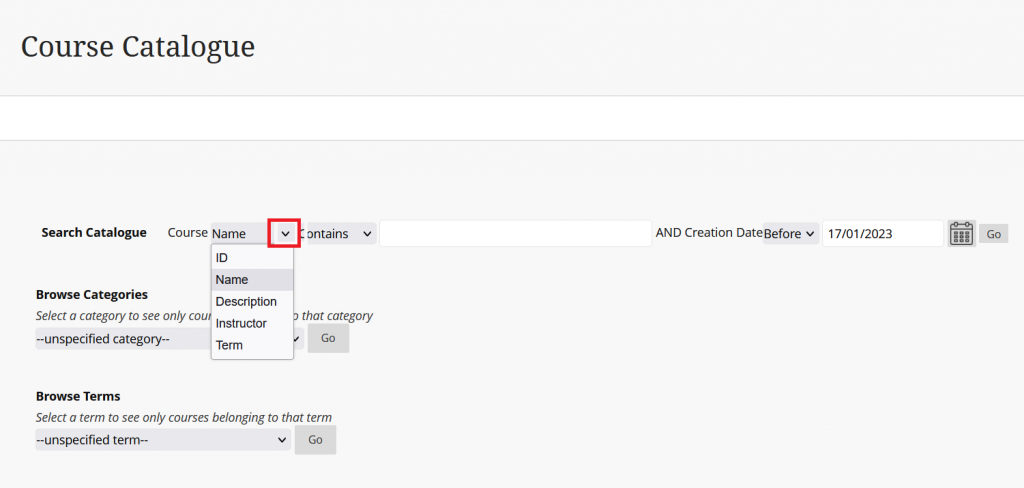
Select the Course Catalogue on the top-right to search for courses.
- You will only be able to enter courses that you are enrolled on
- You can search for Self-enrol courses. Selecting a Self-enrol course will allow you to enrol onto it. Please see our guide for Joining a Self-enrol course.
Navigating between courses
- Select the course tile or name to open the course.
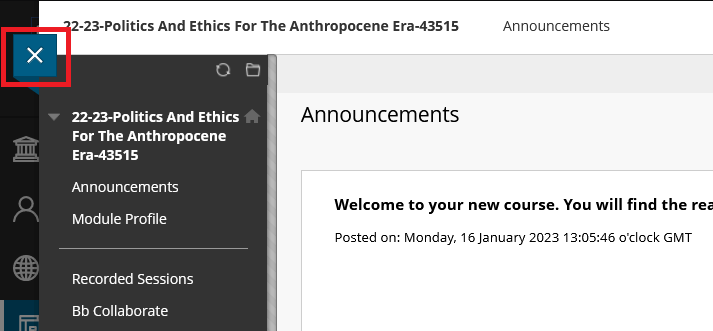
- Select the X in the top left to return to the courses page.
List or Tile view
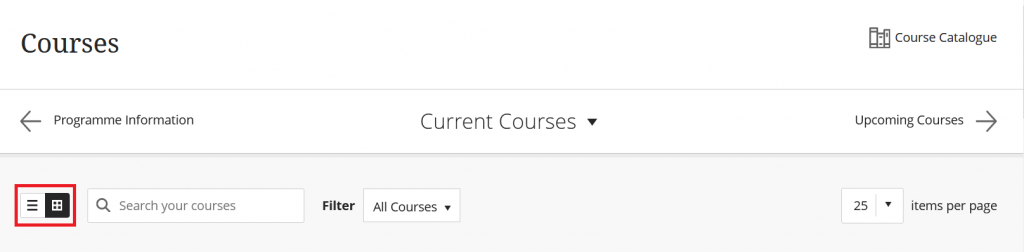
Select the icon to toggle between list and tile view. Tile view will show part of the course banner for easy visual distinction.
Favourites
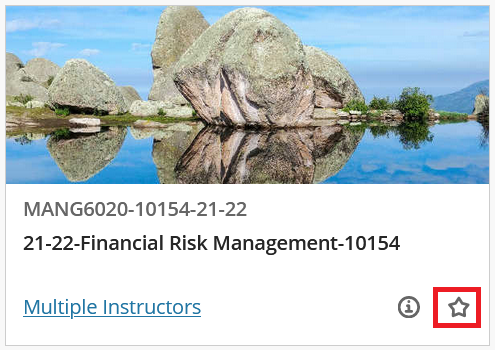
Select the star on the right hand side of the course tile. This will move the course to the top of the page under the “Favourites” heading.
Select the star again to remove the course from your favourites. This will not delete the course from your list.
Private/Unavailable courses
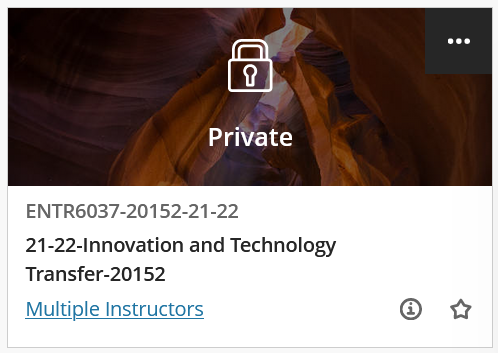
Courses with a padlock symbol have been made Private or Unavailable by the Instructor.
You are enrolled on the course and will be able to see and access the content once the Instructor has made it available.
Hide courses (Instructors only)
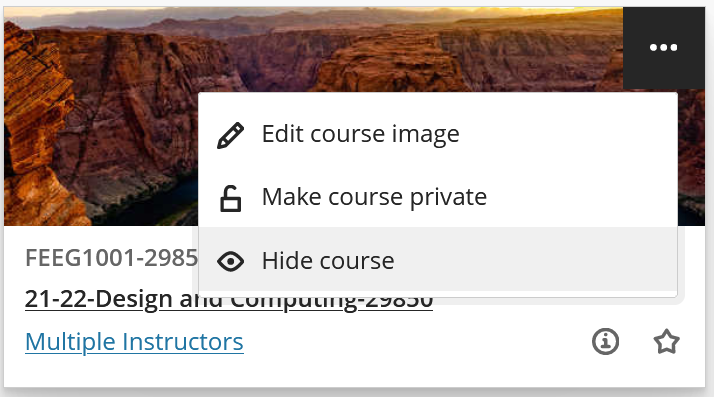
This option is only available to course Instructors. Hiding a course will also prevent you from receiving notifications about the course.
- Select the “…” on the right of the course name
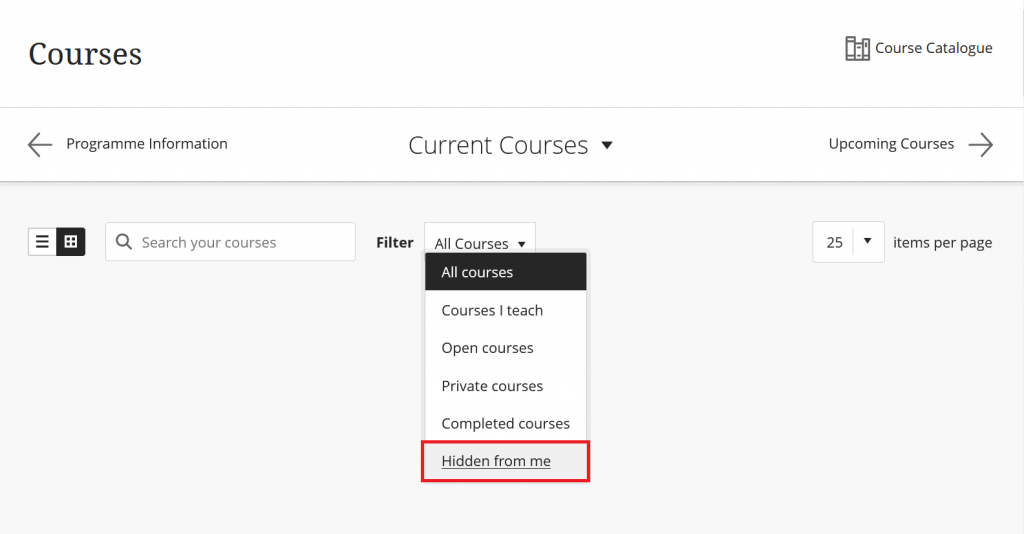
- Select Show or Hide course
- Find your hidden courses by selecting the filter “Hidden from me“
Merged courses (Instructors only)
If a course is merged, you will only be able to see the “parent” course on your list of courses in Blackboard.
Can’t see a course?
Students
Please speak to your Student Office to ask if you are correctly enrolled on the module, or raise a ticket to the Blackboard team on Serviceline.
Staff
If you are teaching on a course you will need to be enrolled as an instructor via Banner. Please speak to your Faculty CQA team to request that you are listed as teaching staff in the associated systems (Worktribe and Banner).
For a more information on how to enrol staff, or request an enrolment for yourself, see managing course enrolments.