The Staff Information area of a Blackboard course can be useful to let your students know who you are, what you look like, and how you may be contacted.
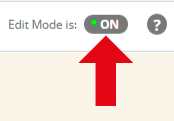
1. Check that Edit Mode is turned ON. This can be switched by clicking ON or OFF.
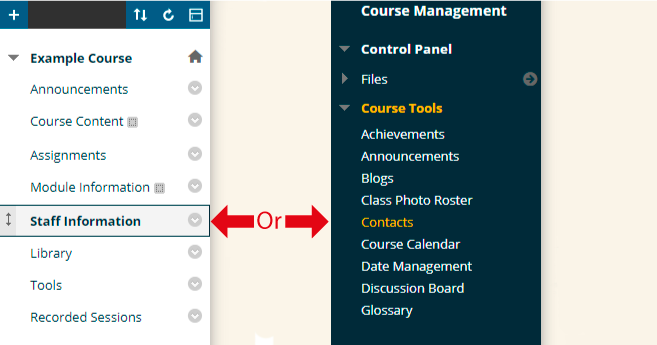
2. Either click on Staff Information from your course menu, or go into Contacts from the Control Panel > Course Tools area
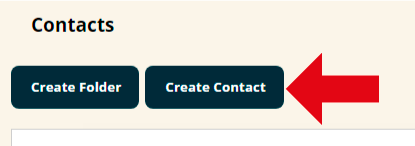
3. There are two buttons. You can add a folder or a contact. Folders can be used to group items together, like directories on your hard drive.
4. Click on Add Contact to add a staff profile.
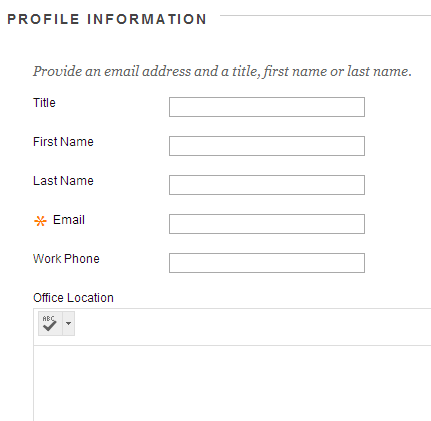
5. In the first section a number of fields are listed into which you may type the relevant information. When entering your email address remember to add @soton.ac.uk to the end of it e.g. abc123@soton.ac.uk.
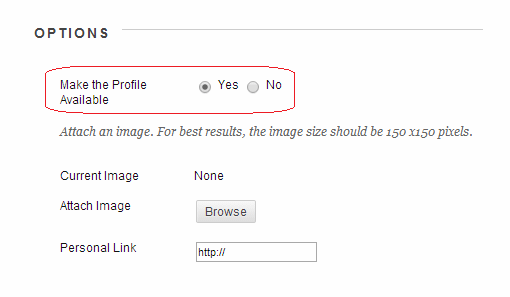
6. The second section begins by asking if you want to make the Profile available? Stating Yes means that Students will be able to see the profile. If you state No, then the profile will not be visible to students. This can be useful if you want to add lots of staff, but make them visible week by week (for example guest lecturers).
Note that the default setting is No, so if you want students to view the profile you must change the setting to Yes.
7.Next you can upload a photograph. Click on Browse to open an Open File box. Locate the picture file you wish to add and click on Open. Note that for best results the photo dimensions should be 150 x 150 pixels.
8. The next box Personal Link allows you to put the web address of a home page if you have one. Remember to enter the full address with http:// at the beginning, e.g. http://www.southampton.ac.uk/.
8. Click on Submit when you have finished.
9. The profile has now been created. Note that clicking on the Modify button will give you options to edit or delete the profile.